What a Google app password is
A Google app password, often called a Gmail app password, is a 16-character password that Google generates for one app, so that app can sign in to your Google Account without your real password and without the prompt on your phone.
It exists because some software cannot show Google's sign-in screen. Anything that sends mail on your behalf over SMTP is in that position: it has nowhere to display a code and nobody to tap approve. Google hands it a password of its own instead. For HyredFast, it is what lets your emails go out from your own Gmail address.
Step 1: turn on 2-Step Verification
App passwords only exist on accounts that have 2-Step Verification, so it comes first. If yours is already on, go straight to step 2.
- Go to myaccount.google.com and sign in.
- Open Security in the left sidebar.
- Under How you sign in to Google, find 2-Step Verification. If it is off, it will say so.
- Open it, and enter your Google password if you are asked.
- Press Turn on 2-Step Verification.
- Confirm the second step Google asks for, such as a phone number, then press Done.
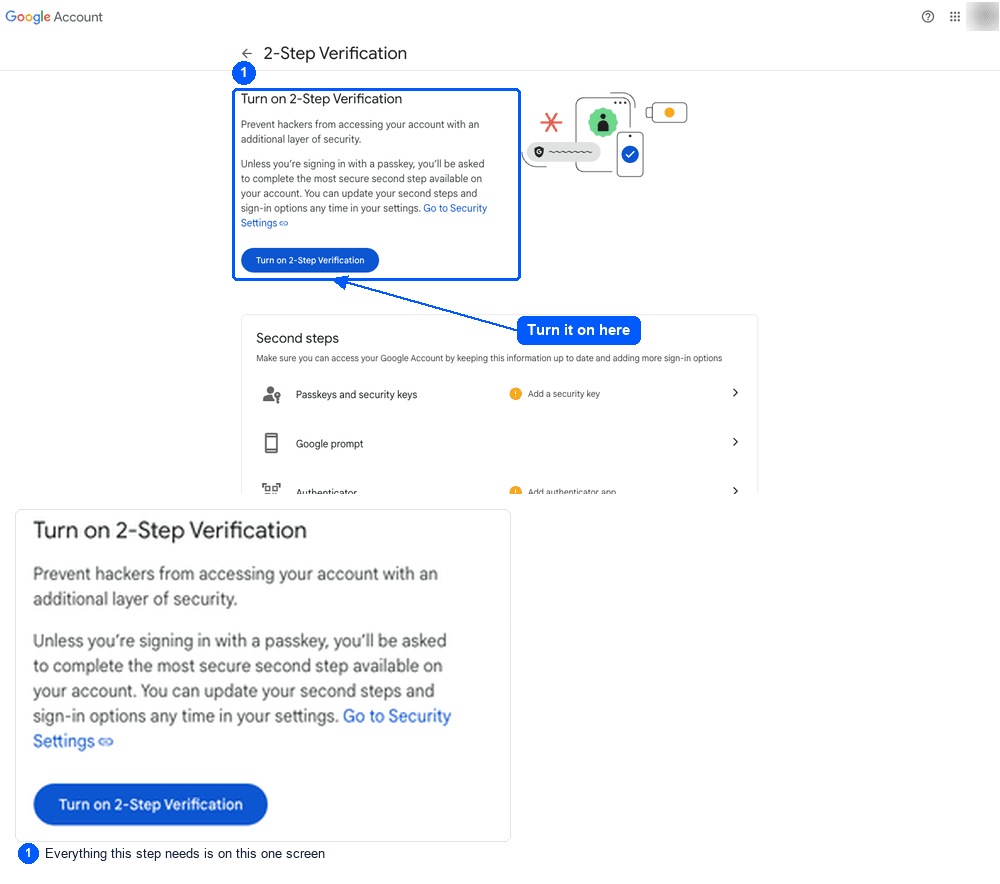
That is the only change to your account's security in this whole process, and it makes the account safer whether or not you ever create an app password.
Step 2: create the app password
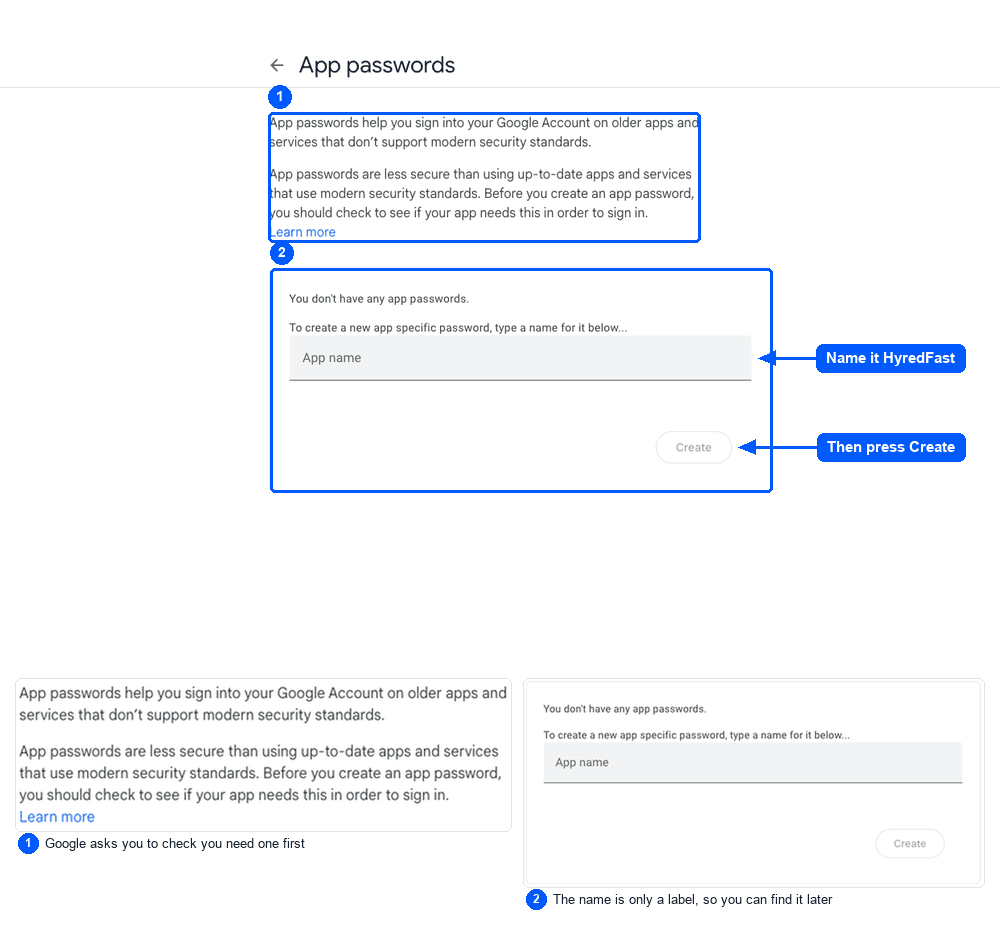
- Open myaccount.google.com/apppasswords. Sign in again if Google asks.
- Type a name for the password. It is only a label for you, so call it HyredFast and you will know what it is later.
- Press Create.
- Google shows the password. Copy it before you press Done.
The password appears once. Google does not show it again, so if you lose it you do not recover it, you create another and delete the old one.
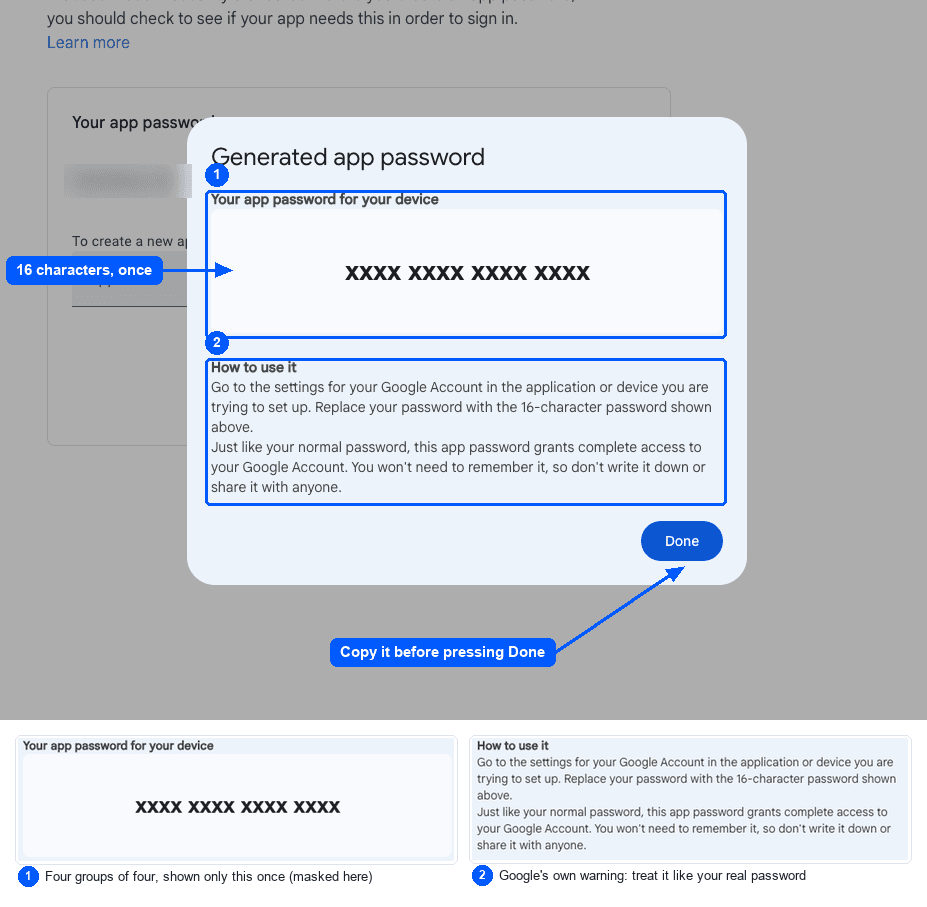
Paste it exactly as Google shows it, spaces included. Gmail accepts it either way, and HyredFast tidies the spaces for you.
Use it to connect Gmail to HyredFast
In HyredFast, open Settings, then Email settings, and choose Gmail. Enter your Gmail address, and paste the app password into the field that says App password. Underneath it, the form links to the same two steps you just did, in case you want them again.
HyredFast removes the spaces for you. That is deliberate: the password is stored encrypted and read back at send time, and the fewer characters that have to survive that round trip, the fewer ways it can go wrong.
When you connect, HyredFast sends a short test email from your address to itself, with the subject HyredFast sending test. If it arrives, the mailbox works and you are done. You can delete it.
The next job is deciding who to write to. If you do not have the addresses yet, this walkthrough finds them with Apollo.
Gmail SMTP settings, for any other tool
HyredFast fills these in when you pick Gmail. You only need them if you are setting up a different tool, and they are the same for all of them.
- Server: smtp.gmail.com
- Port: 587 with STARTTLS, or 465 with SSL
- Username: your full Gmail address
- Password: the app password, not your account password
- For reading replies, the IMAP server is imap.gmail.com
The password line is where most setups go wrong, and it is the subject of the next section.
When it does not work
“Application-specific password required”
Gmail answers with error 534, or 535 for Google Workspace, and the words Application-specific password required. It is telling you the password it was given is your normal account password. Replace it with the app password from step 2. It is an easy mistake, because the field looks like any other password field, and the wording does not make it obvious which password is meant.
The app passwords page is not there
Check the three cases from the start: security keys only, a work or school account, or Advanced Protection. Google does not offer app passwords on those, and there is no setting that turns them on.
If it is a work account, use a personal Gmail address for your job search instead. That is better advice than it sounds: you do not want your search, or the replies to it, sitting in your current employer's mailbox.
It worked, then it stopped
Google revokes your app passwords when you change your Google Account password. Create a new one, and paste it into HyredFast in place of the old.
Removing an app password
Go back to the app passwords page, find the entry by the name you gave it, and press Remove. HyredFast can no longer send from that mailbox the moment you do, which is exactly what you want if you ever stop using it.
Is a Google app password safe?
Treat it as a password, because it is one. Google's own dialog says it plainly: just like your normal password, an app password grants complete access to your Google Account, so do not write it down or share it.
What makes it better than giving a tool your real password is that it is separate. You can remove one without changing the password you use everywhere else, the tool never sees your real password, and you get to keep 2-Step Verification switched on.
Google would rather apps used Sign in with Google where they can, and for those that can, that is the better route. Sending over SMTP from a personal Gmail account is the case where an app password is still how it is done, and it is the one used here.