Why you need the address at all
Writing to the person who does the hiring works better than applying through a form — that is the whole argument in our introduction to HyredFast. But it depends on one thing the argument quietly assumes: that you can reach them.
LinkedIn is where you find out who they are. It is a poor place to write to them — connection requests from strangers sit unread for weeks, and InMail credits run out. An email address goes straight to the inbox they already have open.
Apollo is one of the better free ways to find that address. This walks through it from a standing start.
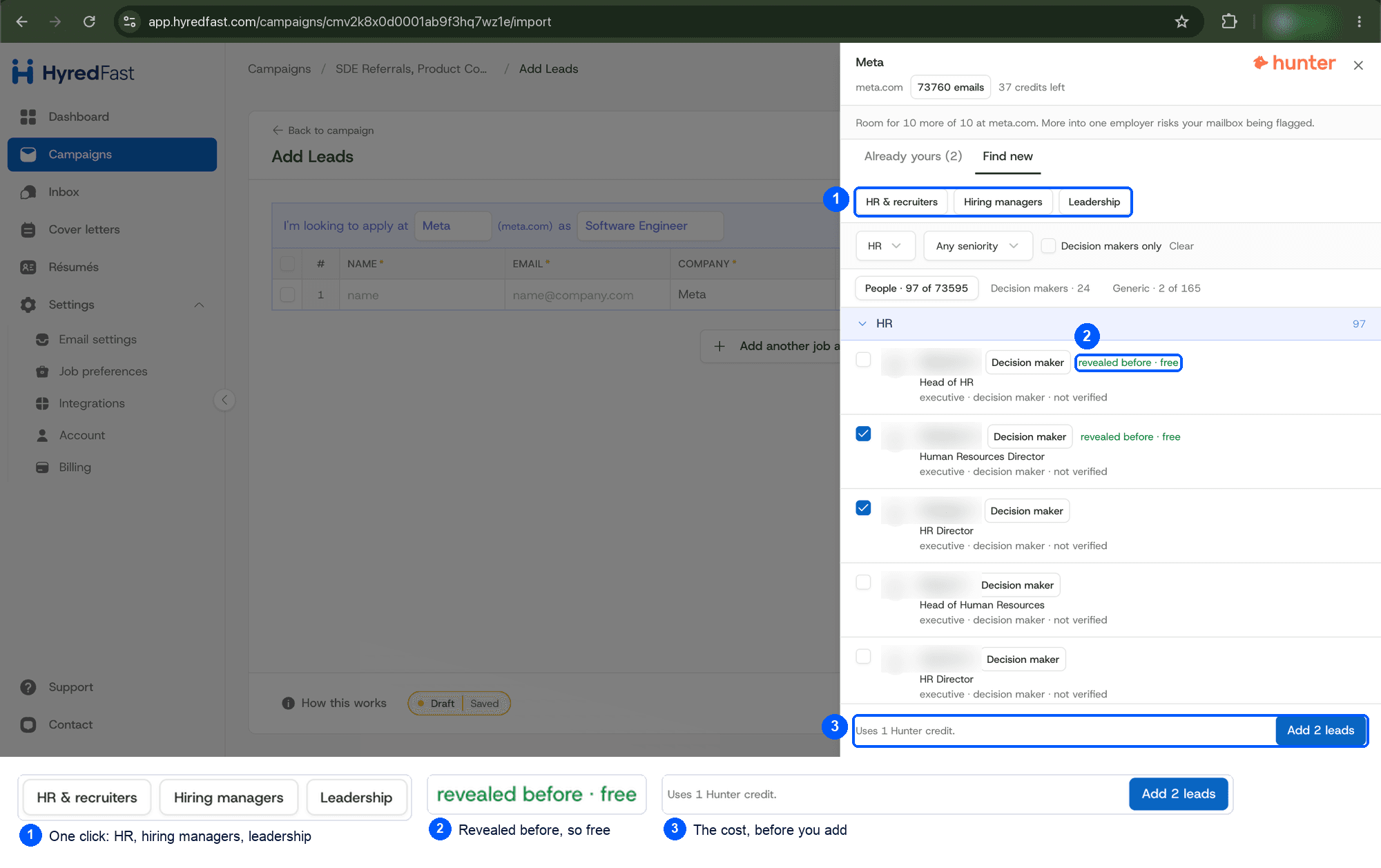
Hunter does the same job and connects to HyredFast directly, so you can find people without leaving the app. See our Hunter guide.
Step 1: create a free Apollo account
Go to apollo.io and sign up. The free plan is enough for a job search — you do not need a demo, and you do not need to give a card.
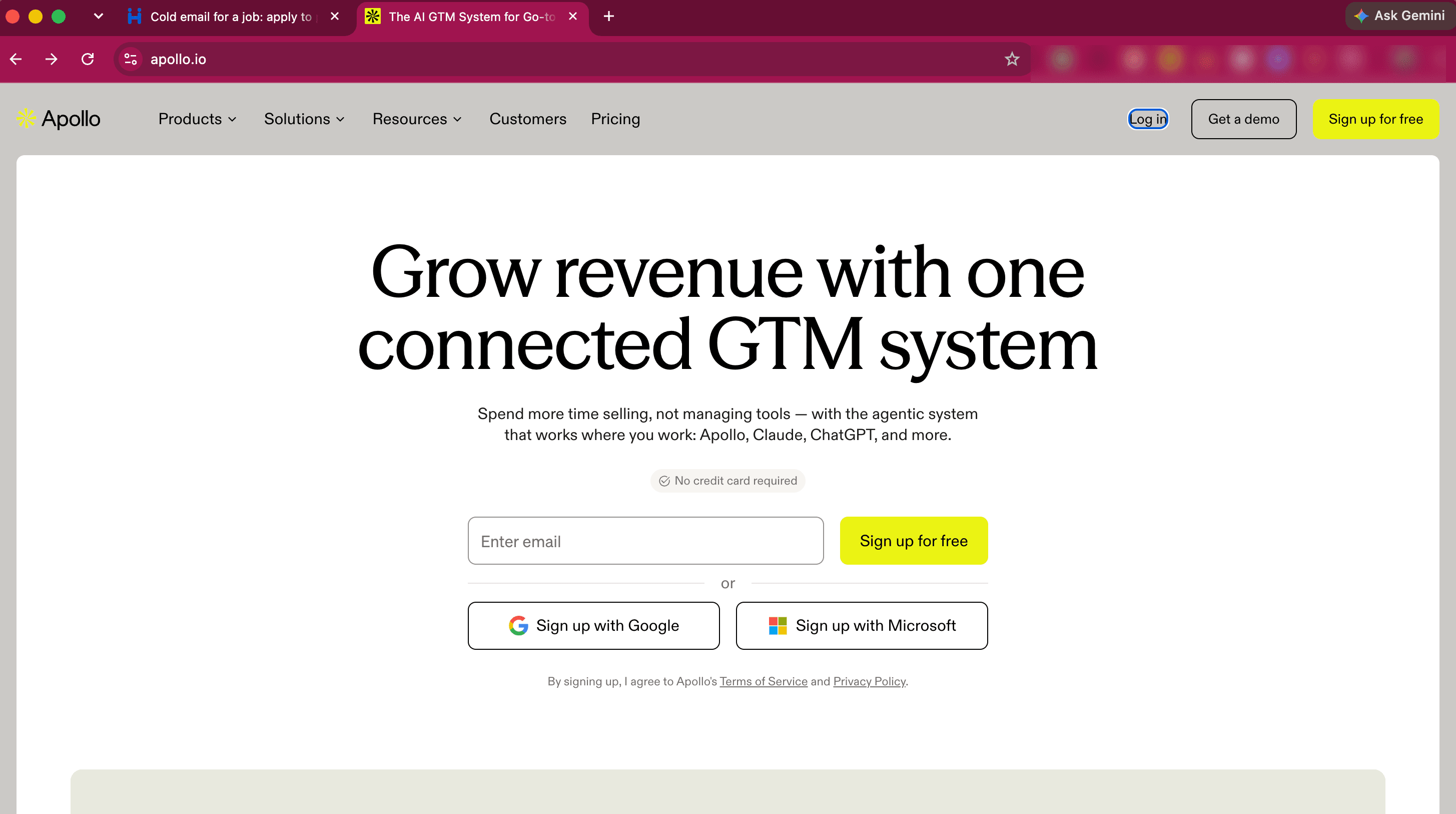
Apollo is built and sold for sales teams, so the onboarding will ask what you are selling and how big your team is. Answer it honestly and ignore the framing — nothing about the free plan changes based on what you pick, and the part you want is the people search.
Step 2: find the People search
Apollo opens on a sales dashboard — recommendations, pipeline, deals. None of that is for you. The one thing you want is in the left sidebar, under Prospect and enrich.
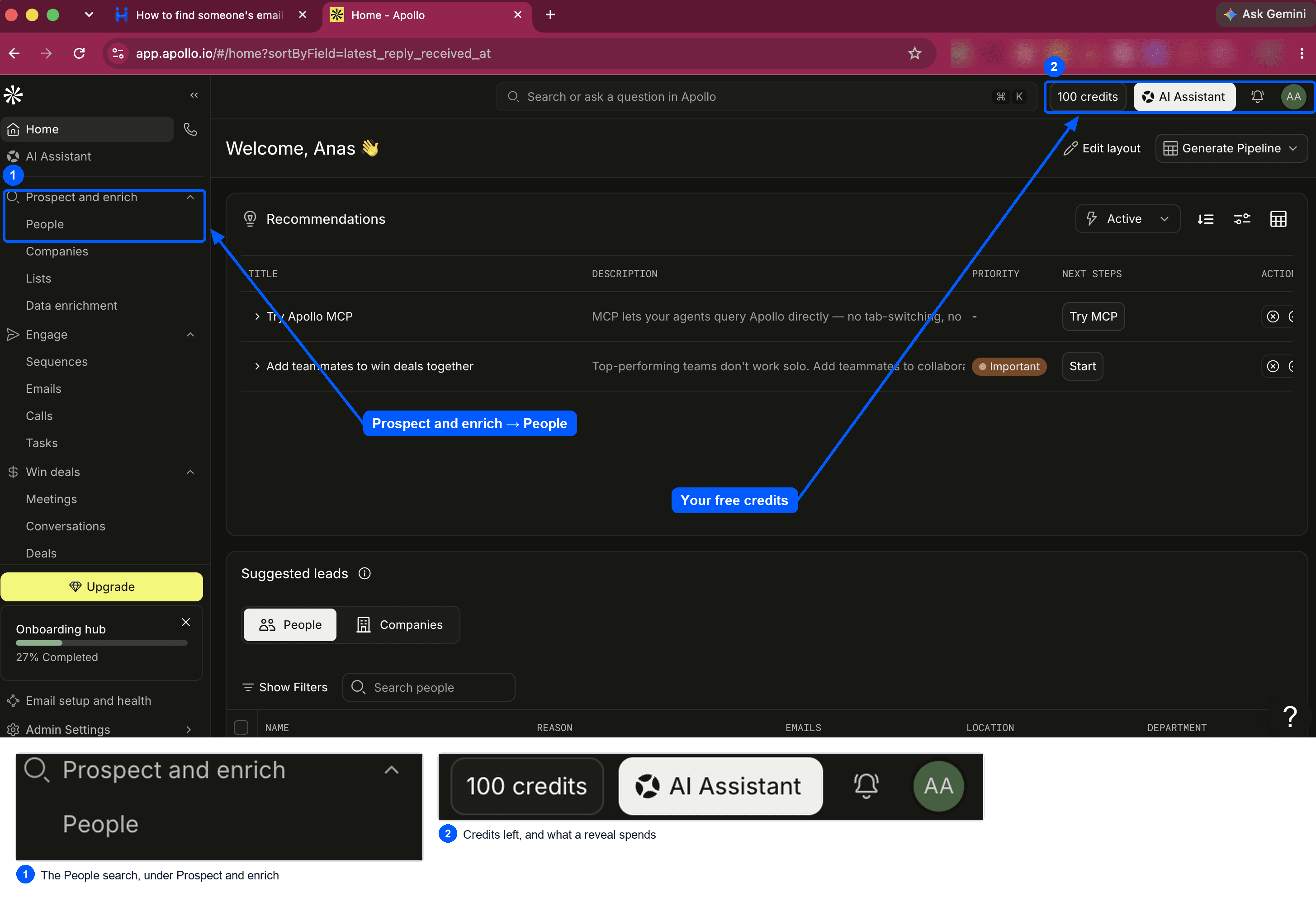
Note the credit balance in the top bar. Credits are what a revealed email address costs, and on the free plan they are finite — which is the reason the next step is about narrowing before you reveal, not after.
Step 3: filter to one company at a time
Open People, then set the Company filter to Specific companies and name the one you are applying to. Resist the temptation to add six at once: you are about to spend credits, and a wide search spends them on people you were never going to write to.
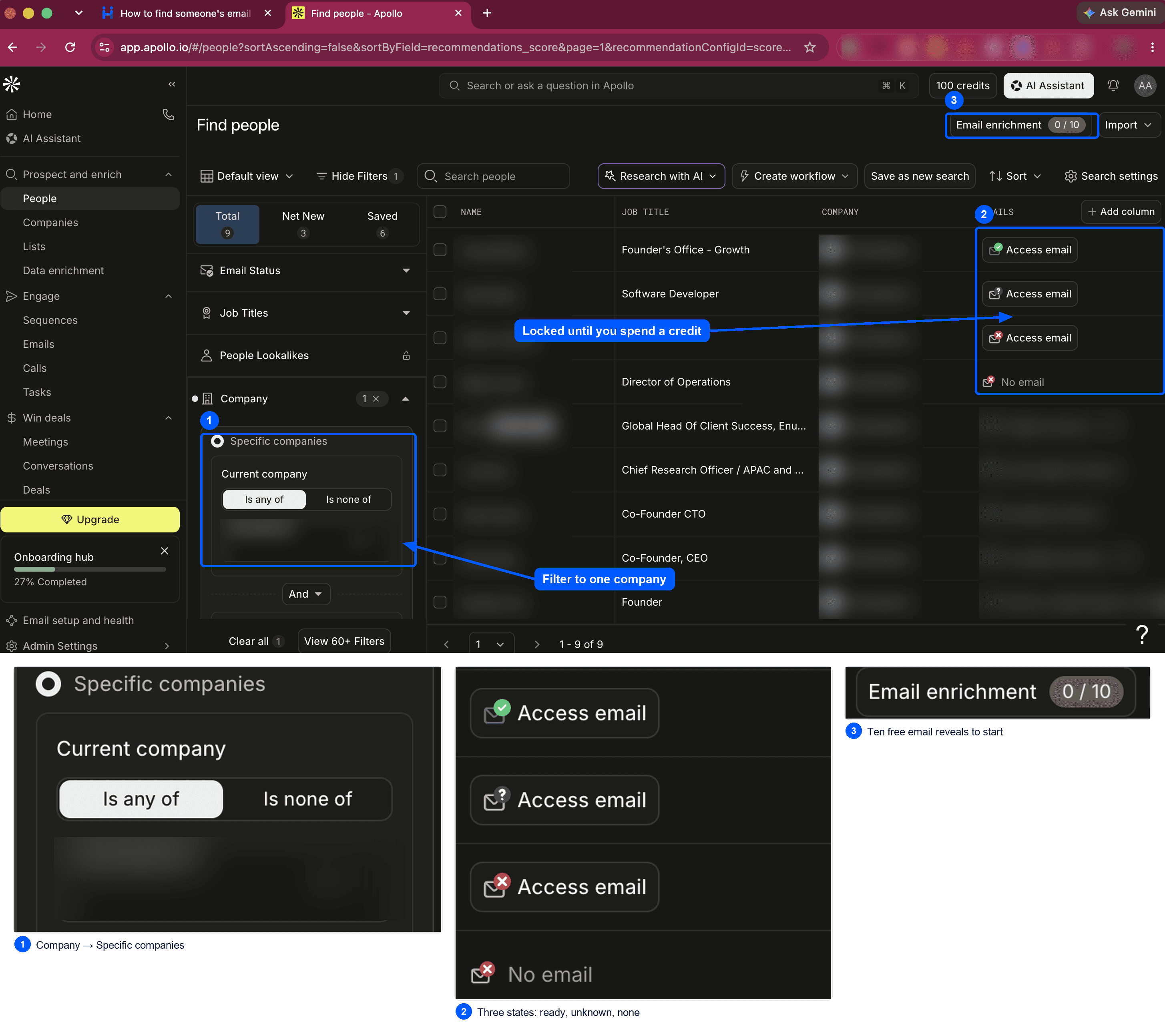
The EMAILS column is where the useful information is, and it says three different things before you spend anything:
- A green tick — Apollo has an address it is confident about. These are the ones worth a credit.
- A question mark — it has a guess. Treat it as unverified and check it before you send.
- A red cross, or No email — it has nothing. Spending a credit here buys you nothing.
Step 4: bring the contacts into HyredFast
You now have a handful of names and addresses. The last step is getting them somewhere that will write to them and keep track of who answered. In HyredFast that is Add Leads, inside a campaign.
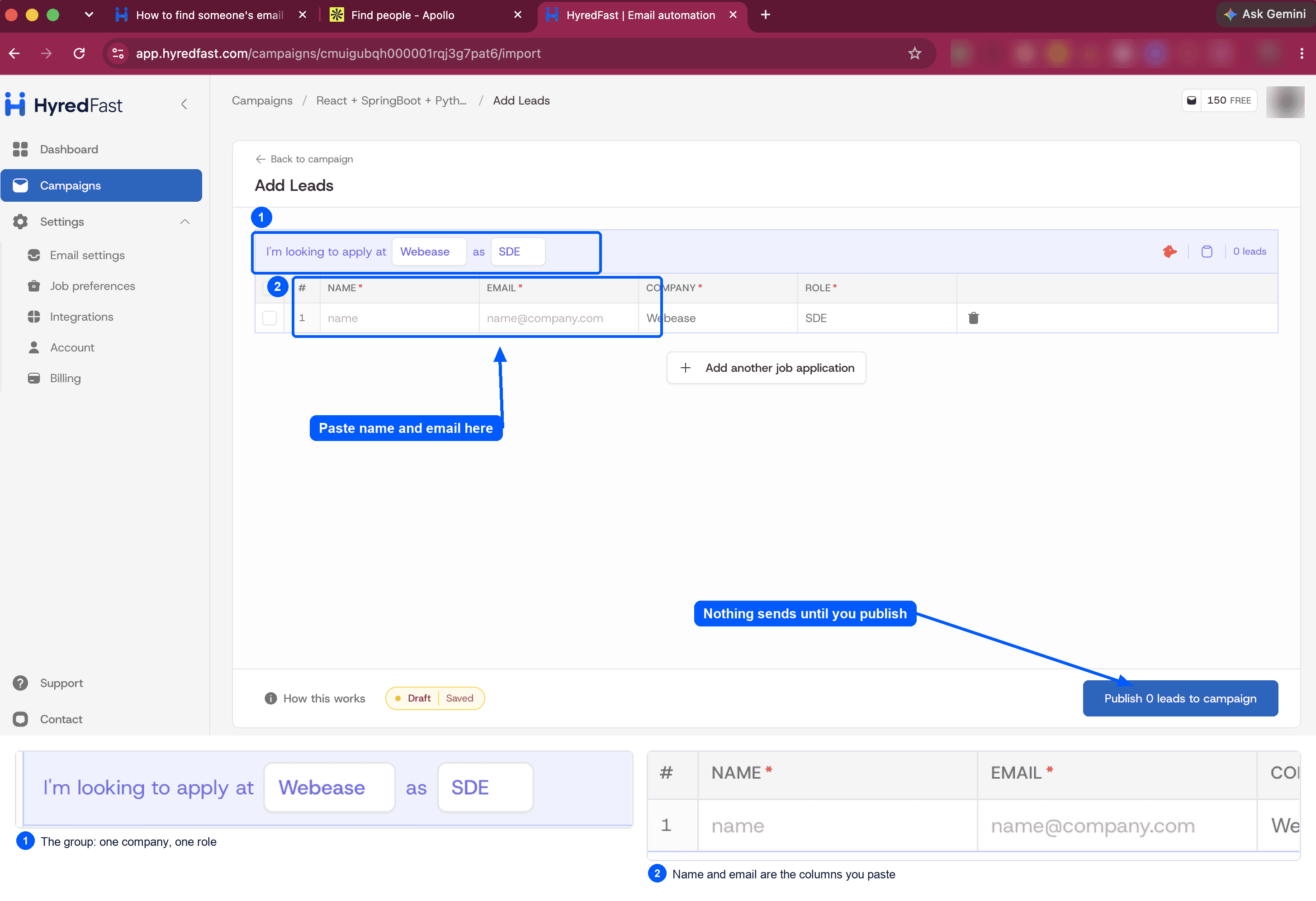
The shape is deliberate. Company and role are stated once at the top of a group rather than repeated on every row, because every lead in that group shares them — and because what you are tracking is an application to a job, not a list of strangers.
Paste the whole block at once
You do not have to type the rows. Select the names and addresses in Apollo, copy, and paste into the grid — a block with tabs or line breaks in it becomes rows rather than landing in one cell. Two columns are what matter: name and email.
- Make a group for the company and the role you are applying to.
- Paste the contacts you revealed in Apollo into that group.
- Repeat for the next company — a separate group each time.
- Press publish when the campaign is ready. Nothing sends before that.