Why Hunter
Writing to the person who hires works better than applying through a form. That is the argument in our introduction to HyredFast, and it only works if you have their email address.
Hunter is one good way to get it. Give it a company, and it shows you the people who work there and the email addresses it knows. Our Apollo guide does the same job with a different tool. The difference is that Hunter connects to HyredFast, so you can use it on Hunter's site, inside HyredFast, or both. This guide covers both.
Step 1: create a free Hunter account
Go to hunter.io and sign up. The free plan is enough for a job search. After you sign up, you land on the dashboard.
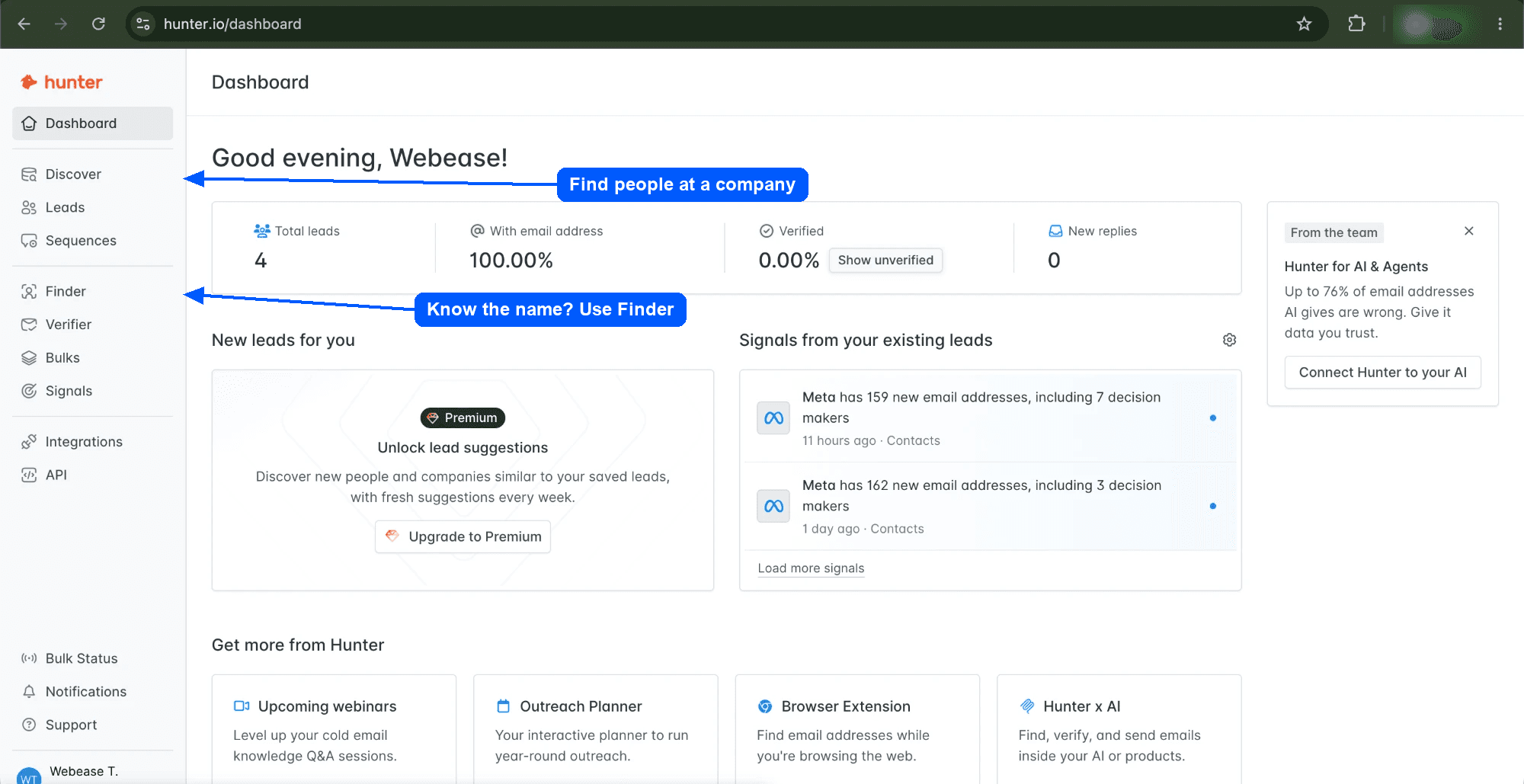
- Discover finds people at a company. Use it when you know where you want to work, but not who to write to.
- Finder guesses one person's address from their name and the company's domain. Use it when you already know who you want to write to, for example from LinkedIn.
Most of the time you know the company and not the person, so this guide uses Discover.
Step 2: search for the company by its domain
Open Discover, then open Company name in the filters on the left, and type the company you are applying to. Hunter suggests companies as you type.
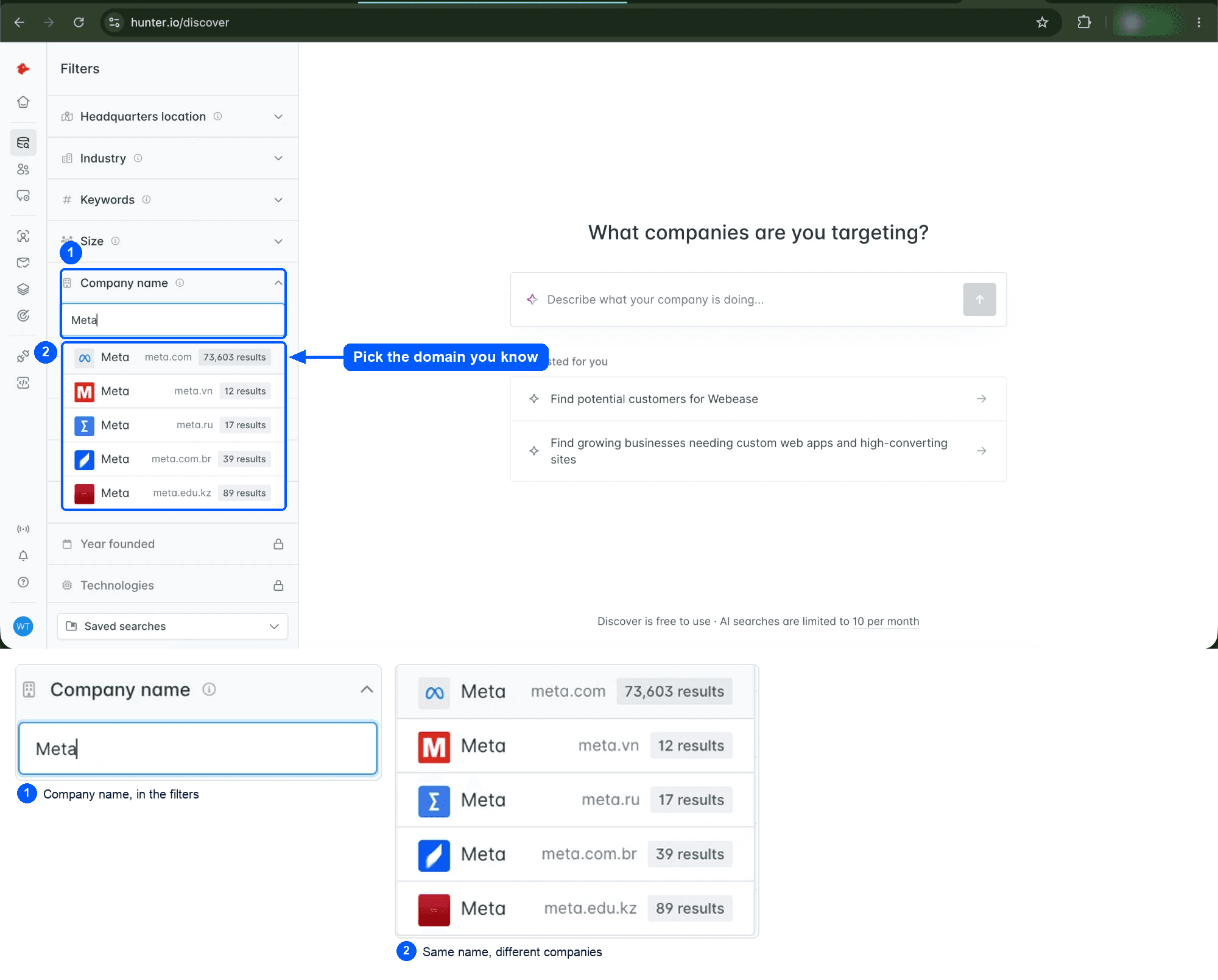
Look at the domain next to each name, not just the name. Many companies share a name, and the people at the wrong one are no use to you. If you are not sure which domain is right, check the careers page you were reading: its address tells you.
Step 3: reveal the addresses you need
Pick the company and its page opens on the right. Under Email addresses you see the people Hunter knows at that company, with their job titles. Their addresses are hidden until you reveal them.
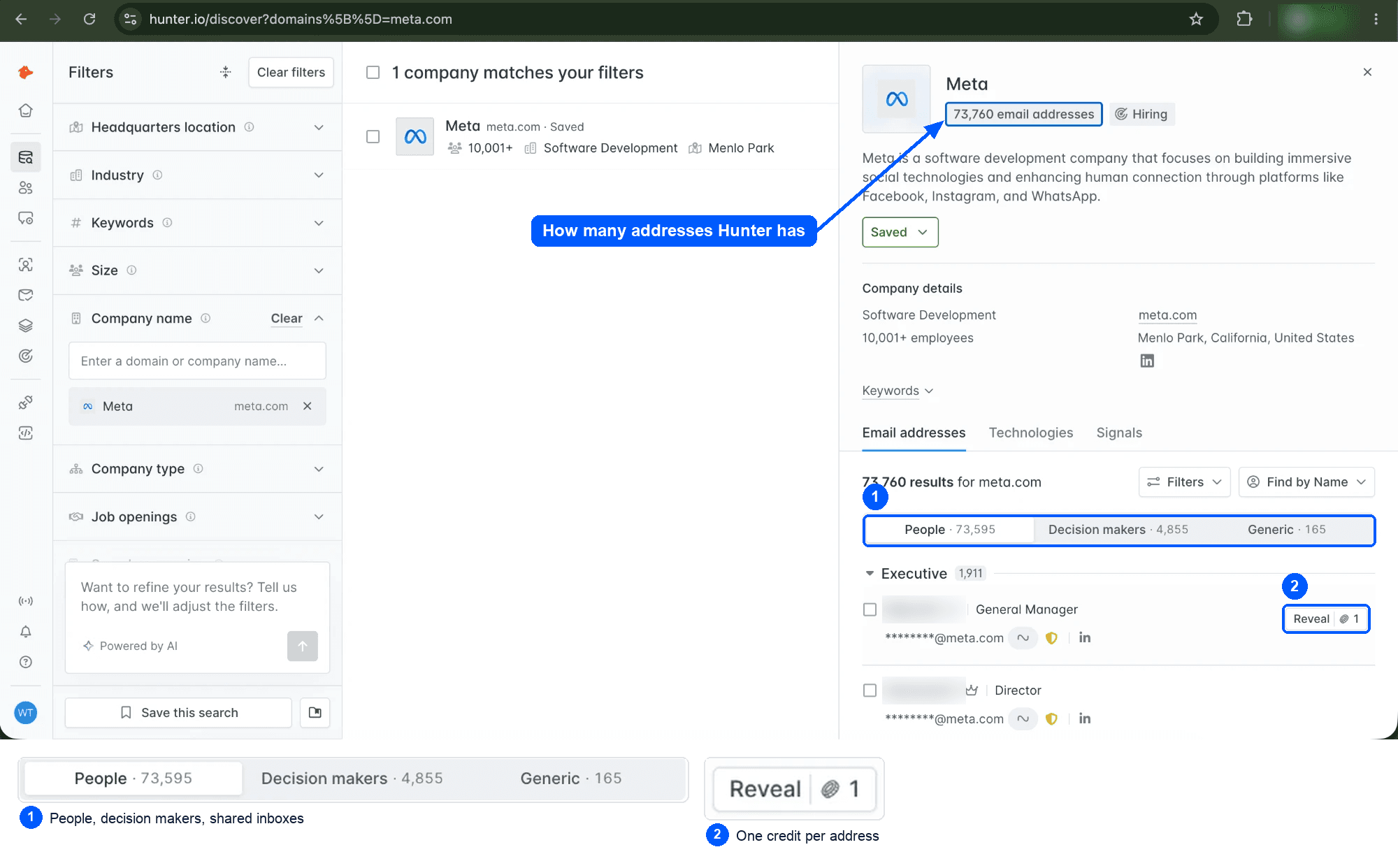
- People is everyone Hunter knows at the company.
- Decision makers is the senior part of that list.
- Generic is shared inboxes, like jobs@ or careers@.
Each Reveal costs one credit. Look for people in HR, recruiting, and the team you want to join, and reveal only the two or three who would actually work with you.
Step 4: find them again in Leads
Everyone you reveal is saved under Leads in Hunter, with their address, company and job title. You do not lose them if you close the page.
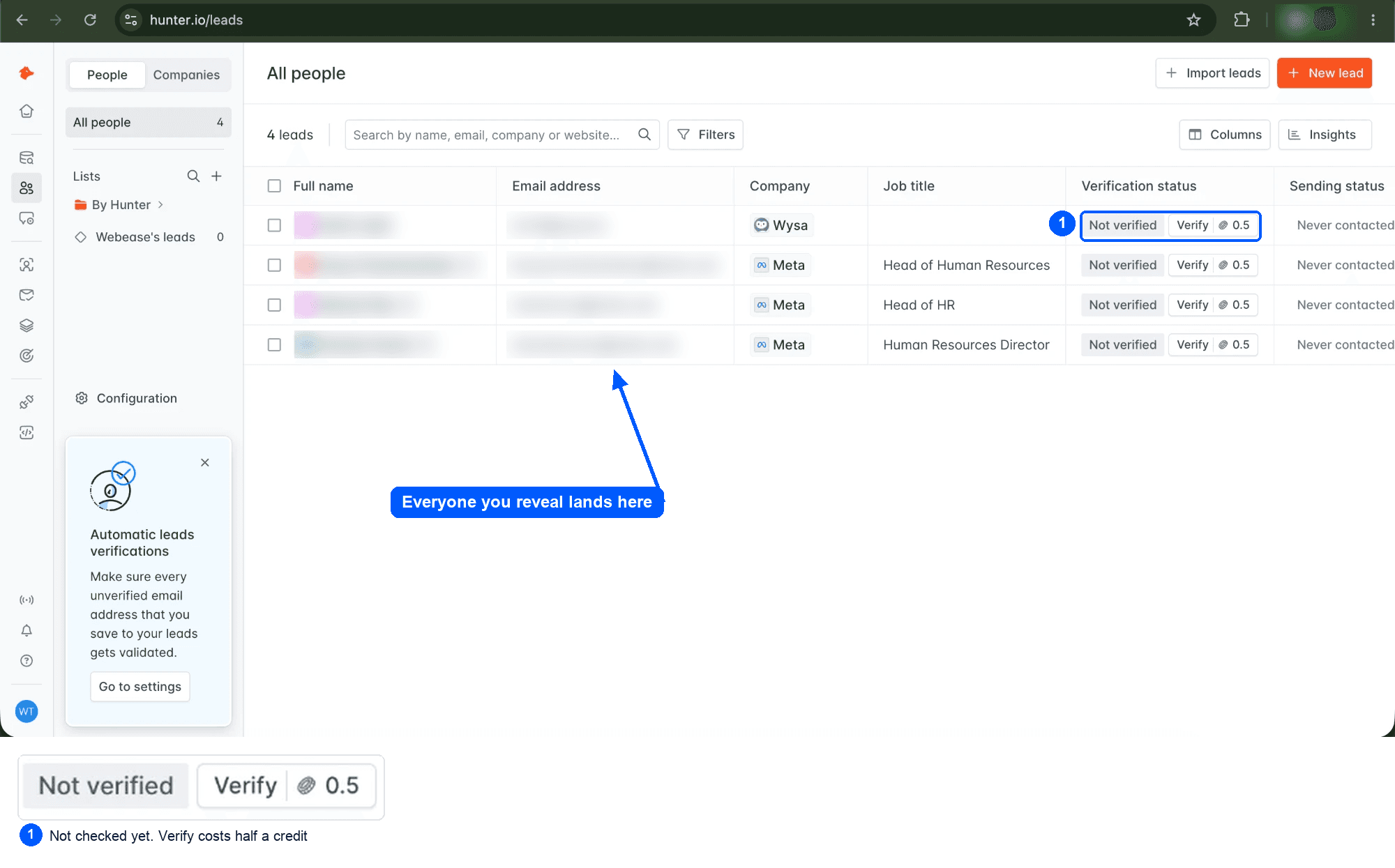
This list is also what HyredFast pulls in once you connect Hunter and sync, in the next two steps.
Step 5: connect Hunter to HyredFast
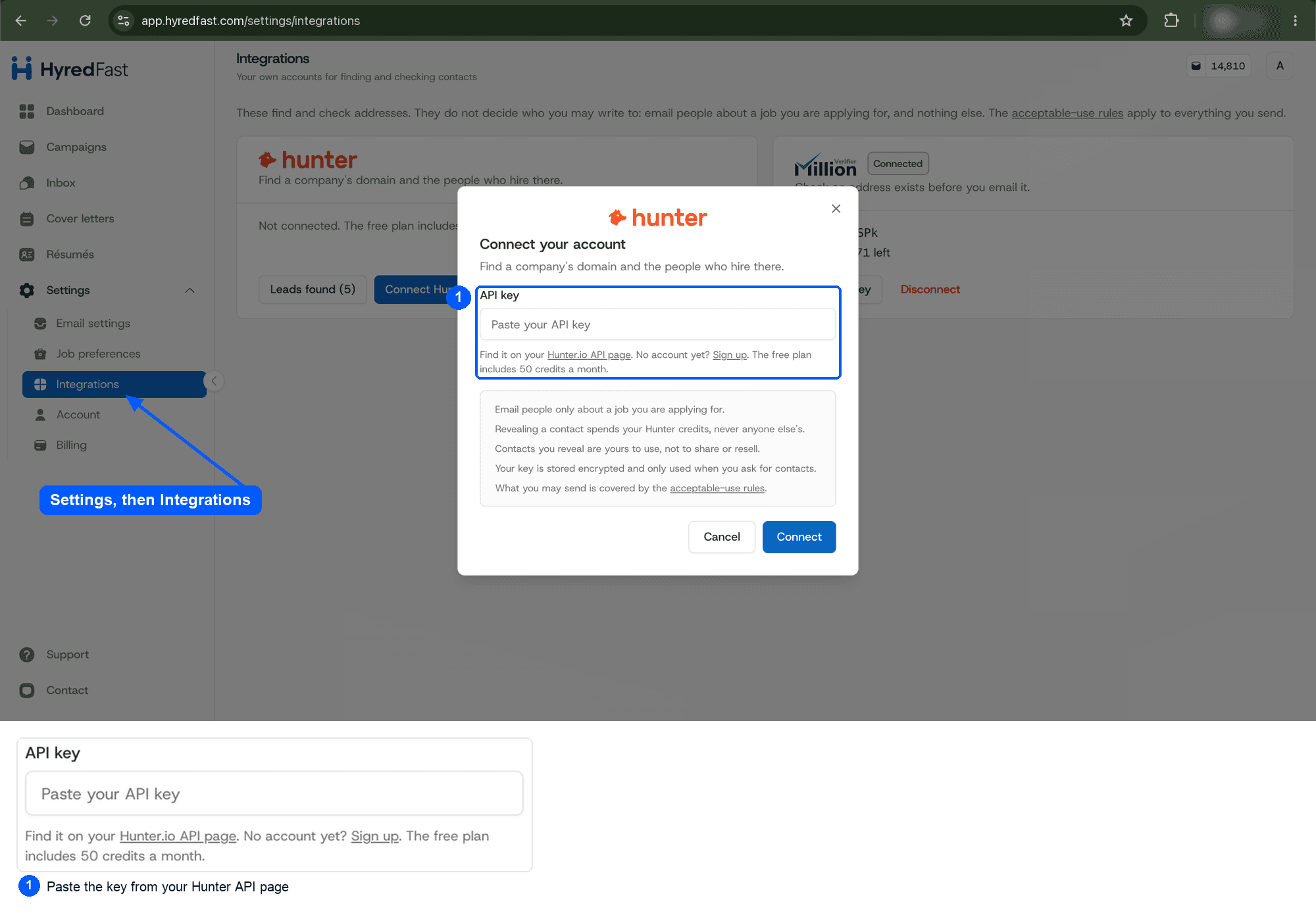
In Hunter, open your API keys page and copy your key. Then in HyredFast, go to Settings, then Integrations, press Connect Hunter.io and paste it.
Step 6: bring in the people you revealed
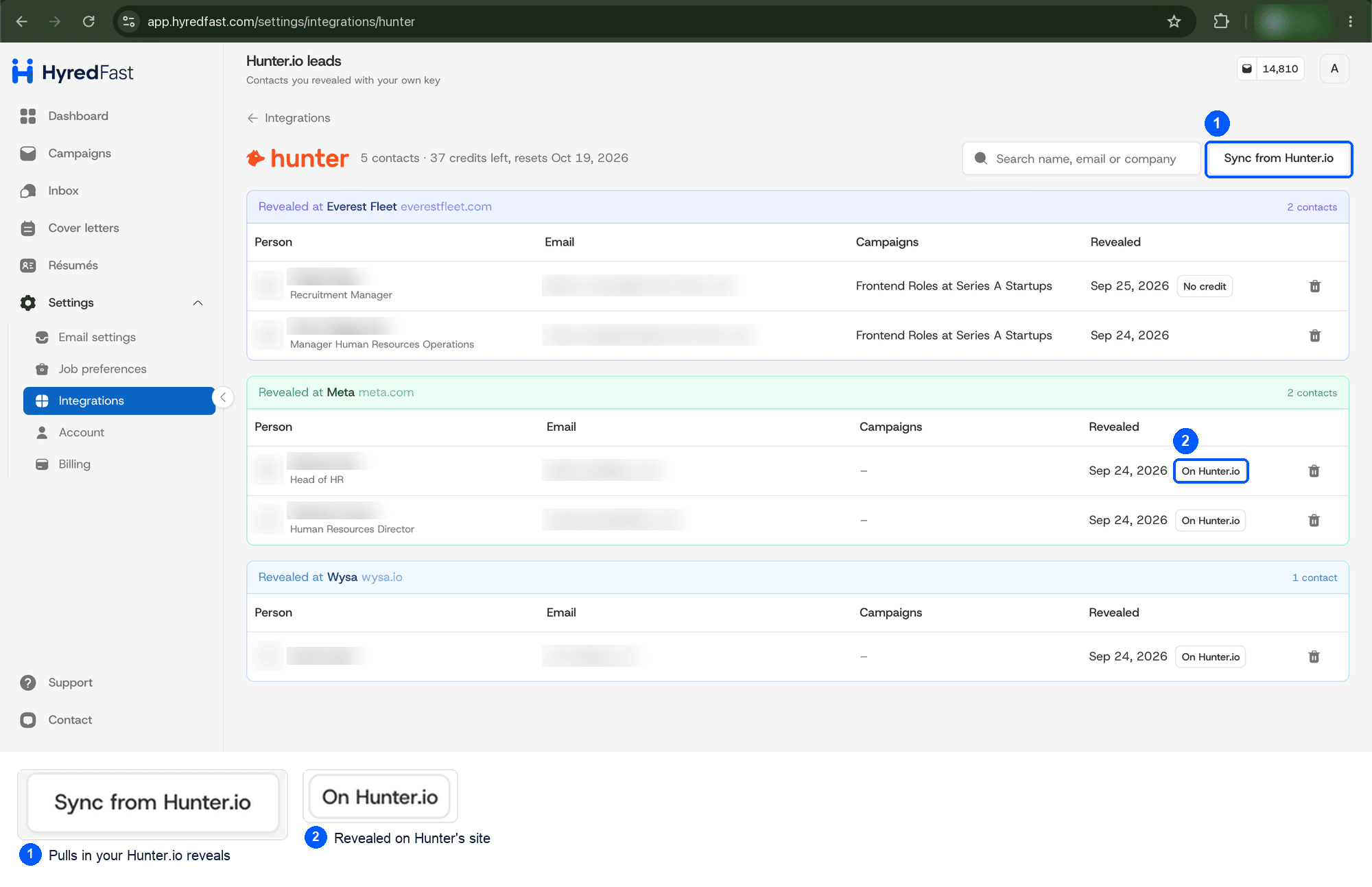
Once Hunter is connected, the Hunter card on the Integrations page has a Leads found button. Open it and press Sync from Hunter.io. Everyone you revealed on Hunter's site comes across, grouped by company. Syncing is free.
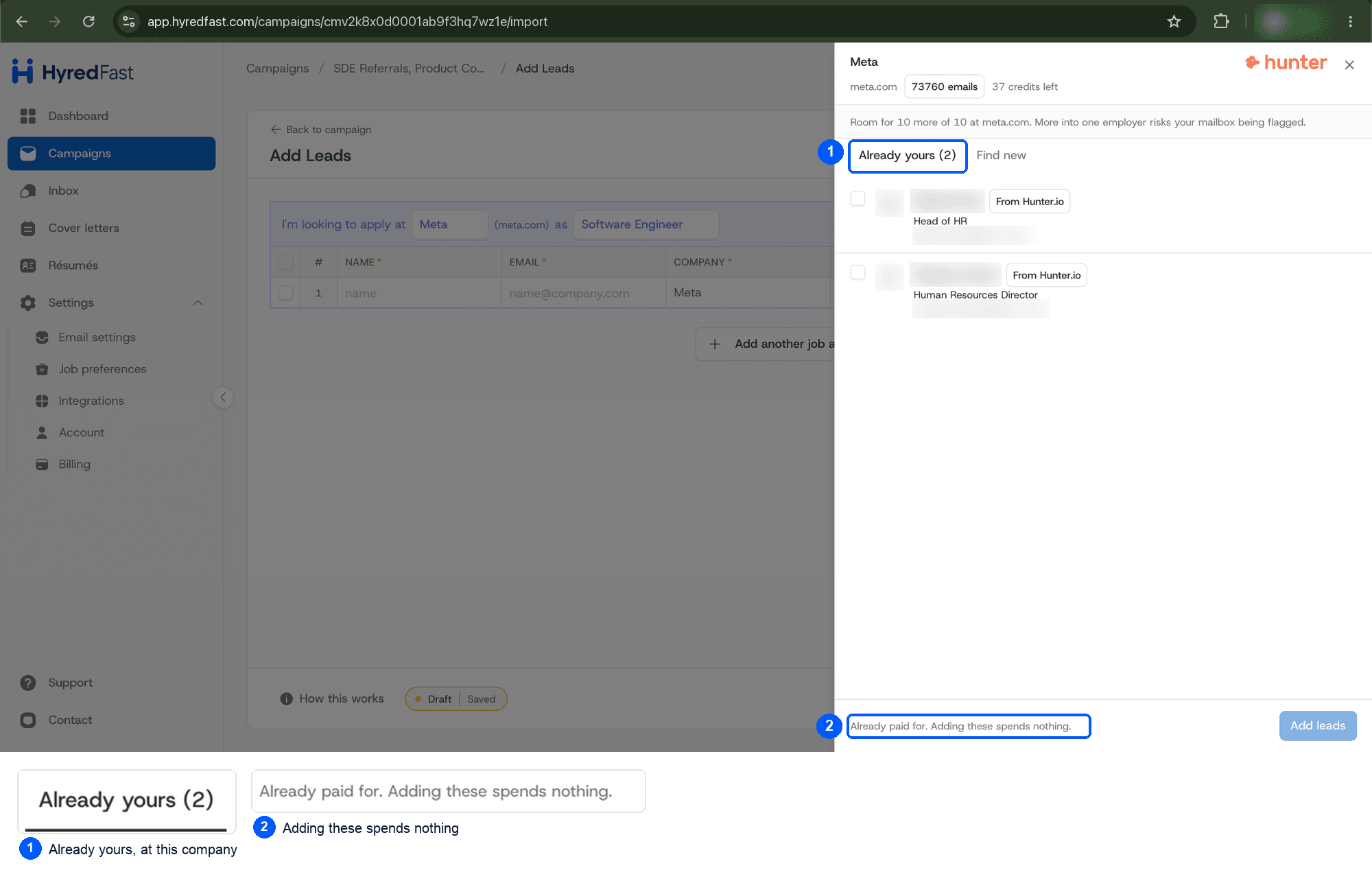
Now add them to a campaign. In Add Leads, make a group for the company and the role you are applying to, and press the Hunter icon on the group. The Already yours tab lists the people you have revealed at that company.
Step 7: or skip Hunter's site and find people here
You do not have to go to Hunter's site at all. The Find new tab in the same panel searches Hunter for you, for the company in that group.
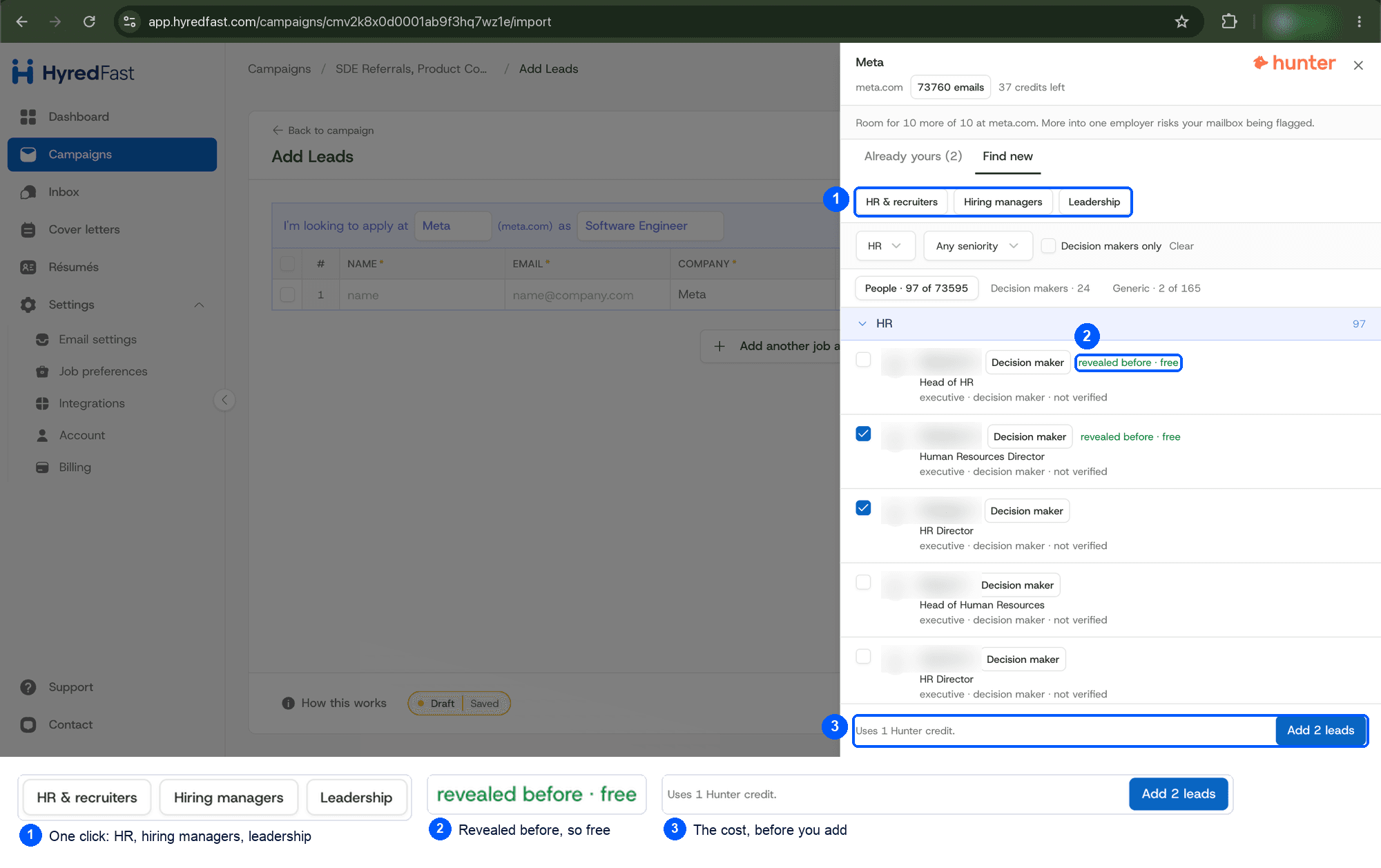
- HR & recruiters, Hiring managers and Leadership set the filters for you in one click. You can also pick a department and seniority yourself.
- Browsing the list is free. Adding a new person costs one Hunter credit, the same as a reveal on Hunter's site.
- Someone you revealed before is marked free, and costs nothing to add.
- The panel shows how many more people you can add at that company, up to ten.
The people you add land in the group as rows, ready to write to. From here it works the same as any other lead: check the group, then press publish. Our Apollo guide shows that page in more detail.